Security

Show wifi password in clear

Got access to a wifi network, but forgot the password? No a problem. At least not if you have a windows, Mac or Linux machine with access. All these OSes can basically without restrictions show you the wifi password in clear text.

Windows

Once you have access to the wifi network. Open the commandline and enter the following command replacing “SSID” with the actual name of the wifi network you want to retrive the password to.

netsh wlan show profile name=SSID key=clear

Let's Encrypt and IPv6

I’m using Let’s Encrypt as Certificate Authority on this and many other sites. I like it, as it allows me to automate certificate creation and renewals, however I also have some monitoring making sure everything works as expected.

I recently got a few alerts as some certificates weren’t renewed as expected. I figured nothing had changed on the server setup and there was renewal happening for a few days, I started looking into it and found the issue why the renewal was failing, so here’s the story.

Certificate check from Go

As the web moves more and more to HTTPS and ehanced security (such as HSTS) keeping your certificates updated and valid becomes more and more important.

I’m toying with an idea of building a small webapp to monitor my small portfolio of certificates and warn me if a certificate is due to expire. As part of this, I’m slowly patching pieces together in Go and one of the small useful outcomes is a small (compilable to bin) script which prints the basic certificate details of a given domain.

No access to *.dev sites

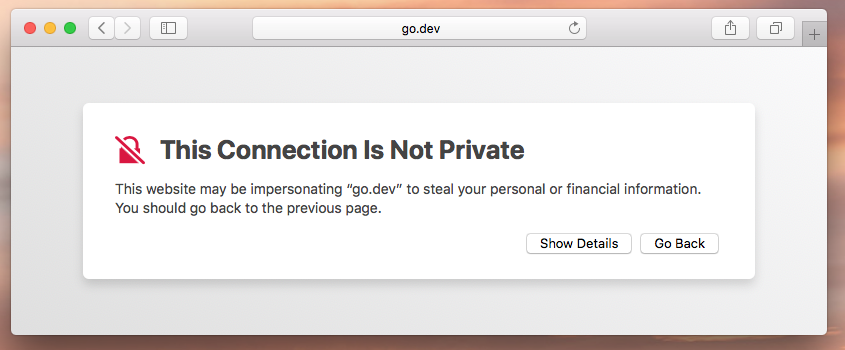
I’ve been having an odd issue for a couple of months. When accessing sites having a .dev domain (like most recently go.dev), I my browsers have given me warnings and as many had HSTS-headers, not allowed me to visit the site.

It seemed like a strange error, and I’ve tried to remember if I’ve set up some proxy or VPN connection, that could cause this issue. A few times I’ve asked others on the net if they had issues - which was not the case - and I’ve tried using a web proxy, and everything worked. Yet no matter which browser I used it didn’t work.

DNSSEC and switching nameservers

I’ve switched nameservers for all my domains yesterday. During the past many years I’ve been free-riding on GratisDNS and enjoying their free DNS service (and luckily never needed support in their forums).

Yesterday I switched to Cloudflare and I’m using them for DNS for this (and other domains). I don’t have any particular requirements, and the switch was mostly easy and automated to the extent possible. Two domains went smooth, but the last my mahler.io domain went a stray a few hours during the switch.

Get your DMARC going

Get your company implementing DMARC now…

During the past 5-6 years email industry efforts have been pushing the DMARC standard along. It provides the best widely supported and seemingly efficient way to - as a domain-owner - protect the domain from misuse and abuse in terms of spam and phishing attacks.

postkasse_japan

As sending email has often been a wild-west, and knowing who is a valid sender of email may prove a challenge for many companies - and as most IT developers does seem to care too much about the finer details of email (and production just as bad email headers as HTML markup :-) ), implementing DMARC protection on your domain may actually be a challenge.

Server setup: A user account

So, I’ve been moving the site to a VPS - a Virtual Private Server. A VPS is basically the same as a physical server to which you can’t have physical access. When you get your virtual server, most likely it will be setup with a basic disk image with an Operating System and a root account. In my case at DigitalOcean I choose to setup an Ubuntu Linux image and here are the first moves you should take after creating the VPS to get the basic security in place.

Server setup: Setting up a firewall

A firewall is a basic filter that can provide an efficient protection to your server by only allowing the traffic in and out as the rules of the firewall allows it. Setting up a firewall on a Ubuntu Linux server does not need to be complicated - in fact the one used in this example is called “uncomplicated firewall”.

To get the firewall up and running make sure it’s installed through the package manager. Login and switch to a root shell, then install the firewall with this command:

HTTPS, SSL, TLS - What it does

While surfing the net, you often come across web agencies how promote SSL-certificates (or TLS security) on their products - or their ability to create “secure web applications” with SSL. Most users know HTTPS/SSL/TLS as the little lock, that promises “security” when visiting a page - but what kind of security it actually provides is rarely explained - and far worse often misunderstood.

The while SSL is the popular name (and as it was once known) and HTTPS usually is the way users sees it (as part of a URL in a browser) - the correct name is TLS a short for Transport Layer Security.

Ubunutu Uncomplicated Firewall

I’m still enjoying the fresh new Ubunutu 9.04, and one of the nice new features is a firewall – which Canonical calls “Uncomplicated Firewall”. I’m usually not hooked on firewalls, but just for the fun of it I enabled the firewall on my laptop and it seems to work quite well. The firewall doesn’t seem to have any noticeable impact on system performance and as the laptop from time to time visits open wifi’s, it’s probably a good idea to have protection from other users on open networks.